23 Minutes
Common iOS Code Signing Errors
Fix Bugs Faster! Log Collection Made Easy
iOS code signing is a critical step in app development, ensuring apps are secure and trusted by Apple and users. However, it often leads to frustrating errors that can disrupt development and delay app launches. Here’s what you need to know:
- Top Issues: 89% of developers face certificate problems, 60% struggle with provisioning profiles, and 75% of errors stem from expired certificates.
- Common Causes: Misaligned team settings (40%), expired or misconfigured profiles (25%), and invalid certificates (35%).
- Key Problems:
- Mismatched certificates and provisioning profiles.
- Missing or invalid private keys.
- Entitlement conflicts (e.g., Push Notifications or App Groups).
- Misconfigured build settings or export options.
Quick Fixes:
- Regularly update certificates and provisioning profiles.
- Verify bundle identifiers match profiles exactly.
- Use Xcode to manage entitlements and provisioning profiles.
- Check Keychain for missing or corrupted certificates and private keys.
Understanding these issues and applying targeted solutions can help streamline your iOS app development and avoid unnecessary delays.
Solving the “No Signing Certificate iOS Distribution Found” Issue
Certificate and Provisioning Profile Mismatches
If you’re working on iOS development, you’ve probably encountered certificate and provisioning profile mismatches. These issues crop up when the certificates and provisioning profiles used in your project don’t align as they should, disrupting the code signing process. The result? Builds fail or apps can’t be distributed.
“In short, the purpose of certificates is to serve as proof to Apple that you’re allowed to do what you’re trying to do, and they’re used all the way from uploading a build to installing an app on a specific device.”
Provisioning profiles, on the other hand, play a different but equally critical role:
“While certificates are designed to provide security around the communication between Apple and developers, provisioning profiles are designed to provide security to the end-user.”
Wrong Certificate Format or Corrupted Files
For iOS development, you’ll need .p12 certificates, which combine the certificate with its private key. Sometimes, these files can get corrupted during download or transfer. When that happens, you’ll need to re-download them from the Apple Developer portal and re-import them into Keychain Access to ensure they’re correctly installed.
Certificate and Profile Type Mismatches
Another common issue arises when the certificate and provisioning profile types don’t match. For instance, using a development certificate with a distribution profile – or the other way around – creates conflicts that Xcode can’t resolve. Development certificates are for testing and debugging on registered devices, while distribution certificates are meant for submitting apps to the App Store or for enterprise distribution.
To make matters worse, having multiple similar certificates on your system can confuse the signing process. To avoid headaches, always verify that you’re pairing the correct certificate with its corresponding provisioning profile.
Invalid or Missing Provisioning Profiles
Provisioning profiles must match the Xcode bundle identifier exactly. Even a small mismatch can lead to signing errors. Additionally, if a certificate tied to a profile expires or is revoked, the profile becomes invalid, causing builds that previously worked to start failing unexpectedly.
Another common pitfall involves missing entitlements. If your app relies on specific capabilities – like Push Notifications, Associated Domains, or App Groups – your provisioning profile must include those entitlements. Without them, the app might fail at runtime or lose access to critical features.
These types of mismatches are a major source of build failures and distribution delays. For teams juggling multiple certificates and profiles, manual management often proves more reliable than Xcode’s automatic signing feature.
“For solo projects, it should be feasible to simply turn on the automatic signing feature and not worry about any of this signing stuff, but for large teams, the rule is always the same: for the love of God, don’t ever, ever, press the automatic signing button.“
When troubleshooting these issues, start by checking that certificates are installed correctly, along with their private keys. Ensure profile types match their respective certificates and confirm that bundle identifiers are consistent across all configurations. Regular maintenance, like clearing out expired certificates from Keychain Access, can help you steer clear of these common problems in the future.
Missing or Invalid Private Keys and Certificates
Private keys and certificates form the backbone of the code signing identity in iOS development. When one of these components is missing or corrupted, builds often fail with confusing errors. These issues can disrupt the code signing process and lead to wasted time troubleshooting.
“A Certificate and its Private Key together can be referred to as ‘identity’ or ‘Code Signing Identity’.”
These problems often occur unexpectedly, breaking builds that previously worked fine. Understanding these issues and how to address them quickly can save hours of frustration.
Missing Private Keys
A frequent issue arises when private keys associated with distribution certificates are missing. This typically happens when an app is archived and uploaded to the App Store using automatic signing. While the public certificate might be available, the private key remains on the machine where it was originally created.
In February 2025, Repeato explained that the “Distribution Certificate / Private Key Not Installed” error in Xcode often occurs because the private key is missing from the keychain. This usually happens when the certificate was generated on a different machine [7].
If the private key is missing because it was created on another computer, you’ll need to export it from that machine or generate a new certificate. If the original machine is unavailable or the private keys are permanently lost, your only solution is to create new iOS certificates [6].
Now, let’s look at how corrupted certificates and keychain problems can further complicate the signing process.
Corrupted or Improperly Imported Certificates
Certificates can become corrupted due to faulty file transfers or improper imports. These corrupted certificates might appear in Keychain Access but fail during the signing process. To avoid this, always use .p12 files that bundle both the certificate and its private key.
Sometimes, system issues prevent the system from fetching private key details or cause certificates to be improperly imported. In such cases, reinstalling the certificate file and restarting the signing process often resolves the problem. If the issue persists, contacting the Certificate Authority may be necessary.
Keychain Access Issues
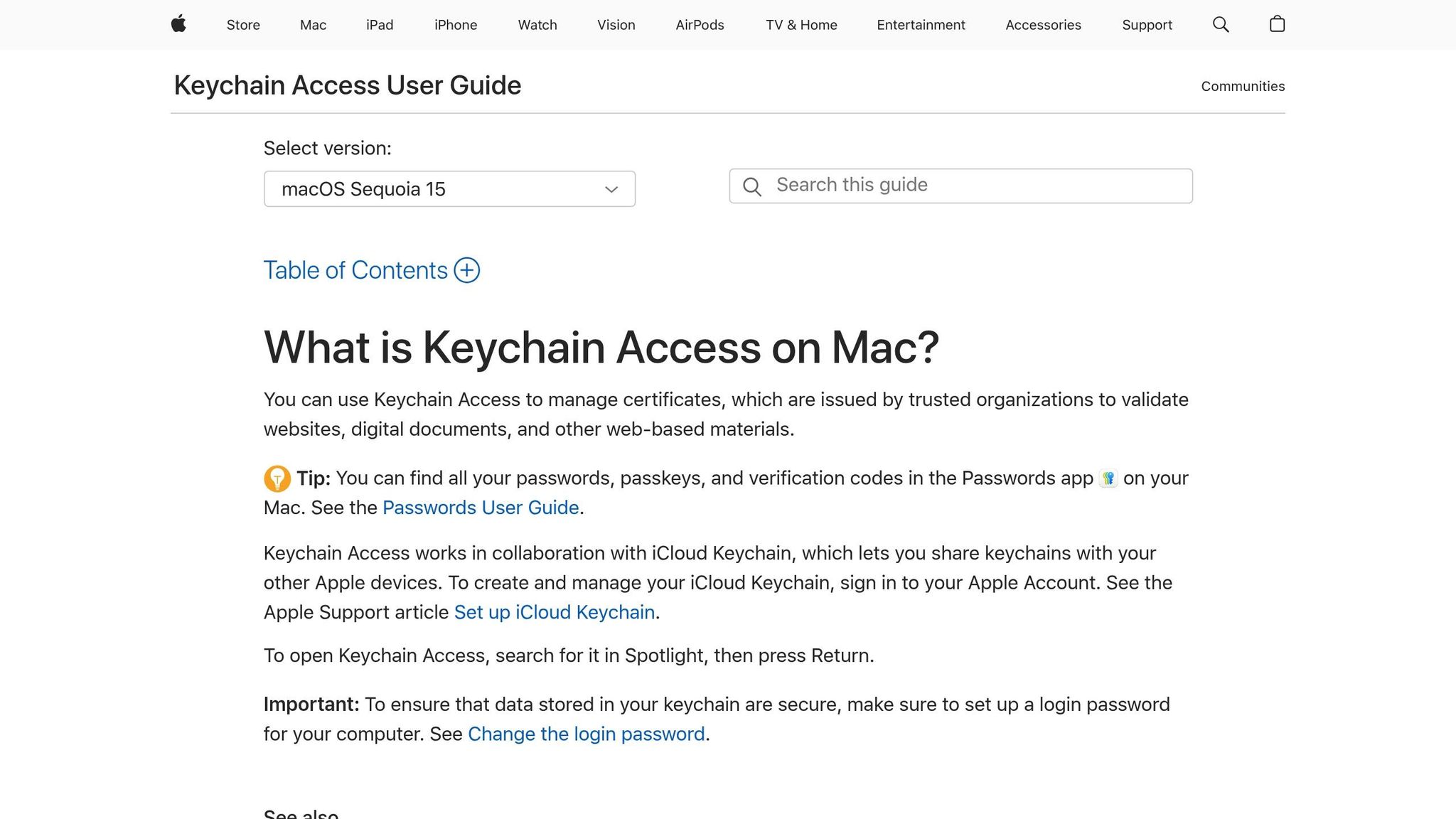
Keychain-related problems can also derail the signing process. One common issue involves incorrect date and time settings on your Mac, which can cause certificates to appear invalid.
“Time on your Mac should be in sync with the server your device is connected to. So, when you have an invalid certificate error, you need to check your date and time settings.”
Keychain Access provides visual cues for problems, such as a red “X” under a certificate’s name.
“If any certificates display a red “X” under its name, right-click the certificate and choose Delete. The certificate will be re-downloaded.”
Deleting problematic certificates and letting the system re-download them often fixes the issue. However, make sure to delete certificates only from the login keychain to avoid impacting system-wide security settings.
For persistent problems, try using Keychain First Aid (available in Keychain Access) to repair corrupted keychain files. If you’re repeatedly prompted to unlock the “Local Items” keychain, deleting the ~/Library/Keychains/ folder may help the system recreate it. Password changes can also disrupt keychain functionality, so resetting the default keychain in Keychain Access preferences might resolve issues caused by recent password updates.
Lastly, ensure certificates are installed in the correct keychain. Development tools like Xcode typically require certificates to be in the login keychain. If certificates are in the wrong keychain, they may not be accessible during the signing process, even if they appear to be properly imported.
Entitlement and Capability Setup Errors
Entitlement and capability mismatches happen when the entitlements in your app don’t align with those in your provisioning profile. Just like certificate mismatches, keeping entitlements consistent with the provisioning profile is critical. These conflicts arise when your app requests permissions it’s not authorized to use.
The operating system checks entitlements during app installation and launch to ensure permissions are configured correctly. If there’s a mismatch between the app’s signature and the embedded provisioning profile, the system will block the app entirely.
Missing Entitlements
Missing entitlements usually show up when your app tries to use features like Push Notifications, App Groups, or iCloud without proper authorization. Error messages such as 0xe8008016 often point to these missing entitlements.
A common error message might look like this:
“Could not install the application. Your code signing/provisioning profiles are not correctly configured … you have an entitlement not supported by your current provisioning profile … (error: 0xe8008016).”
To manage entitlements, use the Capabilities tab in Xcode. When you enable a capability here, Xcode handles several tasks automatically: it updates your entitlements file, registers your Bundle ID as an App ID, activates the service, and adjusts the provisioning profile.
However, this process can break if you make manual changes outside Xcode or if synchronization issues arise between your local setup and Apple’s servers.
To fix missing entitlements:
- Enable automatic provisioning in your Xcode project settings. This allows Xcode to manage certificates, profiles, and entitlements, resolving many issues.
- Check that required capabilities are enabled both in Xcode and on the Apple Developer portal. In Xcode, go to the Capabilities tab under your target settings and confirm the necessary services are checked. Then, log into the Apple Developer portal and verify these capabilities are active for your App ID.
“Before you add capabilities to your Xcode, you need to enable them on the App ID on the Apple Developer website. Otherwise, Xcode will show errors to notice you both are not matched.”
- Refresh provisioning profiles in Xcode by navigating to Xcode > Preferences > Accounts, selecting your Apple ID, clicking “View Details”, and hitting the refresh button.
Once these steps are complete, address any remaining provisioning profile mismatches to resolve entitlement errors fully.
Provisioning Profile Capability Issues
Provisioning profile capability mismatches can create complex and specific errors. These occur when your app’s entitlements reference capabilities not included in the provisioning profile or when values don’t match.
Here’s an example of a typical error:
“Invalid Code Signing Entitlements. The entitlements in your app bundle signature do not match the ones that are contained in the provisioning profile. According to the provisioning profile, the bundle contains a key value that is not allowed: ‘[ A1B2C3D4E5.com.appleseedinc.MyGreatApp ]’ for the key “keychain-access-groups” in “Payload/MyGreatApp.app/MyGreatApp””
This error shows that your app is trying to use a keychain access group not authorized by the provisioning profile. Similar issues can arise with app groups, associated domains, and other entitlement-specific capabilities.
Another frequent issue involves keychain access groups:
“entitlement ‘keychain-access-groups’ has value not permitted by a provisioning profile”
To resolve these errors:
- Regenerate your provisioning profile. Without changing the configuration, recreate it to ensure it matches your app’s entitlements.
- If the problem persists, remove outdated entitlements files and clear the “Code Signing Entitlements” field in your Build Settings. Then, let Xcode recreate the files through the Capabilities tab.
- Restart Xcode to clear any cached provisioning profile data.
For push notifications, confirm that your App ID has push notification services enabled in the Apple Developer portal and that your provisioning profile includes this capability. Both the App ID and provisioning profile must have the capability active.
Lastly, ensure your development and distribution environments align correctly. Mixing development certificates with distribution provisioning profiles can lead to capability mismatches that block successful code signing.
Build Setting Problems
Misconfigured build settings can lead to frustrating code signing errors, especially when working with CI/CD pipelines or projects that involve multiple dependencies. In fact, nearly 40% of these errors stem from mismatched Team settings and Apple developer credentials. Even after resolving certificates and provisioning profiles, ensuring proper build settings is critical to avoid further issues.
Key build settings that influence code signing include:
| Build Setting | Explanation |
|---|---|
| Code Signing Identity | Specifies the certificate used to sign your app |
| Provisioning Profile | Links your app to a specific provisioning profile |
| Code Signing Entitlements | Defines the entitlements granted to your app |
| Team | Specifies the Apple Developer team tied to your project |
When these settings are misaligned or contain errors, builds often fail with cryptic error messages that can take hours to troubleshoot. Below, we’ll dive into common conflicts and misconfigurations that disrupt build settings.
Conflicting Provisioning Profiles
Conflicts with provisioning profiles are common, especially when using multiple dependency managers like CocoaPods and Swift Package Manager. These tools can override your project’s code signing settings, leading to clashes between automatic signing and manually specified profiles. Such issues often occur when manual signing adjustments made earlier aren’t properly synced with the build settings.
For instance, Xcode 14 introduced a change where the CODE_SIGNING_ALLOWED setting defaults to YES for resource bundles. This can create issues with dependencies managed by CocoaPods. A simple fix involves adding a post-install script to your ios/Podfile.
Another common scenario involves having both automatic signing enabled and manual provisioning profiles specified simultaneously. This confuses the system and results in errors.
To resolve these conflicts:
- Reconfigure automatic signing: Go to the “Signing & Capabilities” tab, toggle the “Automatically manage signing” option, and reselect your development team.
- Verify code signing identities: In the “Build Settings” tab, search for “Code Signing Identity” and ensure all instances are set to “iOS Developer” for development builds. Mixing development and distribution identities often leads to problems.
- Remove manually specified provisioning profiles: Search for “PROVISIONING_PROFILE” in the Build Settings tab and clear any values. Automatic signing will handle these settings if enabled.
- If you’re using xcconfig files, double-check that
CODE_SIGN_IDENTITYis set to “iPhone Developer” for release builds. Misconfigured xcconfig files can override Xcode’s settings and cause hidden conflicts. - For third-party frameworks like Ionic or Cordova, review their configurations to ensure they don’t interfere with your project’s code signing setup.
Incorrect Export Options
Export configurations also play a critical role in successful builds. A misconfigured export-options.plist file can disrupt the export process, particularly in CI/CD workflows. This file controls how Xcode exports your app for distribution, and errors here can lead to silent build failures or unusable archives.
The export-options.plist file includes key details like the export method (app-store, ad-hoc, enterprise, or development), team ID, provisioning profile mappings, and signing certificate preferences. Mismatches between these values and your actual certificates or profiles will cause the export process to fail.
Common mistakes include:
- Selecting the wrong export method for your distribution channel. For example, choosing “app-store” when you need “ad-hoc” will fail because the provisioning profiles won’t match.
- Using a team ID in the export options that doesn’t match your Apple Developer account.
- Incorrect provisioning profile mappings. If your app has multiple targets or extensions, each must have a corresponding provisioning profile entry in the export options file.
To configure export options correctly:
- Generate a reference file: Use Xcode’s manual export process. After building your app, go to “Product > Archive”, export manually, and save the export options when prompted. This creates a properly formatted plist file you can use as a template.
- Tailor export options for CI/CD: Ensure your build scripts use the correct export options for each build type. For example, development builds require different settings than App Store submissions. Keep separate export option files for each scenario.
- Validate your export options: Check that the team ID matches your Apple Developer account, the export method aligns with your distribution goals, and all bundle identifiers have corresponding provisioning profile entries.
For automated build systems, store your export options files in version control alongside your project. This ensures consistency across environments and prevents configuration drift. Additionally, when certificates expire or provisioning profiles are updated, remember to update the export options file to avoid unexpected build failures.
Real-Time Monitoring and Debugging Tools
Code signing errors often pop up at the worst times – during critical deployments or when users are actively testing your app. The old-school approach of relying on local logs or manual testing can fall short, especially when these issues only surface on specific devices or in live production environments. That’s where real-time monitoring tools come in. They keep a close watch, providing constant updates and flagging issues as they happen. This allows developers to jump into action before minor hiccups turn into major problems.
With companies in the Global 2000 losing over $400 billion annually due to unexpected digital disruptions, having a solid monitoring system isn’t just helpful – it’s a necessity. Real-time monitoring tools go beyond just spotting errors; they provide detailed reports, like stack traces and user data, which help development teams quickly pinpoint the root cause. This saves valuable time that would otherwise be spent digging through endless logs.
Remote Logging for Code Signing Errors
When it comes to tackling complex certificate and provisioning issues, remote logging is a game-changer. It offers a detailed, device-level view of what’s happening, capturing critical data as errors occur. This eliminates the need for physical access to a device and ensures you don’t miss out on valuable insights.
Bugfender stands out in this area, allowing developers to pull logs from mobile apps in real time, no matter where they’re being used. This is especially useful for catching code signing errors that only show up on specific devices or iOS versions. Even silent failures – those sneaky issues that degrade functionality without obvious signs – are logged, making it easier to track down elusive bugs.
“Bugfender allows me to have remote logs, and investigate really rare bugs and fix them.” – Volodymyt Shevchenko, AppQ
For code signing specifically, remote logging helps uncover patterns in certificate validation failures, provisioning profile mismatches, and entitlement conflicts. When an error occurs, developers can dive into detailed logs that trace the certificate validation process, show which provisioning profiles were attempted, and pinpoint exactly where the signing process broke down.
Bugfender’s ability to capture device-specific logs is particularly valuable here. Code signing issues often depend on a mix of factors – like the device’s state, installed certificates, or the iOS version. Instead of trying to recreate the problem on a local device, developers can see exactly what happened on the affected one, including system-level certificate validation logs that would otherwise be out of reach.
Real-Time Error Monitoring
Real-time error monitoring takes things a step further by sending instant alerts whenever a code signing issue arises. This means your team can act fast, potentially resolving the problem before it affects a larger group of users. It’s a proactive approach that helps maintain app quality and avoids costly delays in distribution.
Bugfender excels here too, offering real-time notifications for errors, crashes, and exceptions – including those tied to code signing validation. The platform provides detailed stack traces and device-specific information, which makes diagnosing issues much more precise.
“The ability to look under the hood in realtime gives us a much better and faster way to detect and fix issues for production apps!” – Martin Kovachev, GymNadz
This instant feedback is especially critical for code signing errors, as they often occur during app installation or the first launch – key moments that determine whether users can even access your app. With real-time monitoring, developers can prioritize the most pressing issues first, ensuring an efficient and effective response.
Contextual Insights Through User Feedback
While automated alerts are powerful, adding real user feedback into the mix provides an extra layer of understanding. Code signing errors don’t always look the same to users as they do to developers. For example, a developer might see a certificate validation failure, but users might just experience an app that won’t open or shows a confusing error message. Bugfender bridges this gap by integrating user feedback directly into its system.
The platform allows users to report issues straight from the app, automatically attaching relevant logs and device details from the moment the issue occurred. This combination of user feedback and technical data speeds up troubleshooting by capturing both the symptoms users experience and the underlying technical cause.
By linking user feedback with specific log entries, Bugfender provides a complete picture of how code signing problems affect real users. This helps developers prioritize fixes based on the actual impact on users rather than theoretical importance, leading to smarter resource allocation and quicker resolutions.
Currently used in over 30,000 apps, Bugfender has proven its capabilities in helping teams maintain app quality. Its commitment to security and GDPR compliance ensures that sensitive logging data stays protected, all while offering the detailed insights needed to tackle complex code signing challenges effectively.
Common Code Signing Errors and Solutions
Developers often encounter recurring challenges when it comes to code signing. These issues tend to follow certain patterns: misconfigured “Team” settings, expired certificates, and invalid profiles are among the most frequent culprits. Keeping certificates updated and configurations streamlined is essential to avoid such headaches.
Misaligned “Team” settings are responsible for nearly 40% of common code signing errors [*], while expired or improperly configured provisioning profiles cause about 25% of these issues. Additionally, invalid certificates account for 35% of build failures, and a staggering 89% of developers report encountering certificate-related problems during app submission.
Given the tight deadlines developers face, quick and effective fixes are crucial. The solutions outlined below are designed to stabilize your code signing process and integrate seamlessly into your deployment workflow.
Error-Solution Table
Below is a detailed table summarizing common iOS code signing errors, their symptoms, causes, and immediate fixes. This practical guide draws on real-world experiences to help you troubleshoot effectively.
| Error Type | Symptoms | Root Cause | Solution |
|---|---|---|---|
| Provisional Profile Signing Errors | App ID or certificate profile shown as invalid | Modified App ID details, expired certificate, or revoked Certificate Authority | Sync Xcode with App ID and enable profile managing services |
| Installation Errors | “Could not verify executable” error | Invalid provisioning profiles or corruption of the signature bundle | Use the codesign -vvv /path/to/the.app command in Terminal to identify the root cause, remove “._” from file names, or set the Info.plist property to ${EXECUTABLE_FILENAME} |
| Entitlement Issues | Entitlement mismatch errors during macOS code sign process | Incorrectly defined or tested entitlements | Check entitlement settings in Xcode, verify services in the App ID portal, and configure provisioning profiles |
| Missing Code Signing Certificate and Associated Keys | System doesn’t detect the Code Signing Certificate or Private Keys | Certificate not properly imported, corrupted certificate file, or missing private key details | Reinstall the certificate file, restart the process, and contact the Certificate Authority if needed |
| Code Signing Identity Mismatch | “The identity ‘iPhone Developer’ doesn’t match any valid, non-expired certificate/private key pair in the default keychain” | Missing private key | Transfer the certificate (with the private key) from your old computer to the new one. If unavailable, generate a new key via the iOS developer portal |
| Invalid Provisioning Profile | Mismatched or expired provisioning profile; incorrect team affiliation in Xcode | Provisioning profile not downloaded, installed, or linked to the correct team | Verify the profile’s validity, ensure proper team selection in Xcode, and re-download the profile if needed |
| Incorrect Signing Certificate | Outdated or incorrect signing certificate; certificate not in Keychain Access | Mismatched certificate and provisioning profile; improper certificate installation | Update the signing certificate, confirm it matches the provisioning profile, and verify installation in Keychain Access |
| Environment Issues | Build failures due to Xcode version conflicts or plugin incompatibilities | Outdated Xcode version or incompatible plugins | Update Xcode to the latest version, reinstall if necessary, and ensure plugin compatibility |
The data reveals that 75% of certificate errors stem from expired certificates, while over 60% of app submission failures are due to incorrect provisioning profiles. This underscores the importance of routinely updating certificates and provisioning profiles as part of your development workflow.
Xcode’s “Resolve Issues” feature can be a lifesaver, automatically addressing many common configuration problems and saving valuable time. For more persistent challenges, tools like Bugfender provide real-time monitoring and detailed logs, making it easier to pinpoint and resolve complex signing errors. By capturing device-specific logs and tracking certificate validation processes, these tools transform debugging into a precise, data-driven process.
Finally, keep in mind that misconfigured App IDs cause up to 30% of signing issues. Double-checking your App ID configuration whenever you encounter problems can prevent unnecessary delays. By combining the systematic approach outlined here with advanced monitoring tools, you’ll have a reliable strategy to tackle even the trickiest code signing problems.
Conclusion
Code signing errors are one of the most persistent hurdles in iOS development. However, understanding their underlying causes and equipping yourself with the right tools can turn these challenges into manageable steps in your deployment workflow. The most common culprits behind code signing failures are outdated certificates and mismatched provisioning profiles. This highlights the importance of staying proactive with monitoring to address potential issues before they escalate.
Catching these problems early and responding quickly can significantly reduce downtime. Traditional debugging methods often leave developers scrambling to reproduce errors that only appear during critical deployment phases. This reactive approach wastes time and can throw release schedules off track – especially when deadlines are tight.
Tools like Bugfender offer the real-time insights you need to resolve these errors efficiently. For example, when a code signing issue arises on a specific device configuration, you can access detailed error sequences and environmental data to implement precise fixes without delay.
To build a more reliable deployment process, integrating effective monitoring tools is key. Remote logging, for instance, creates a feedback loop that helps you spot trends like certificate expiration, profile mismatches, or entitlement conflicts across your app ecosystem. This proactive strategy minimizes last-minute troubleshooting and strengthens your code signing processes over time.
In today’s fast-paced iOS development landscape, efficiency and reliability are essential. By combining the troubleshooting techniques discussed in this guide with advanced monitoring tools, you’ll be well-prepared to tackle even the toughest code signing challenges. The result? Less downtime, faster resolutions, and smoother release cycles – allowing your team to focus on creating exceptional apps rather than battling deployment issues.
Ultimately, code signing is about maintaining trust and security within the iOS ecosystem. By resolving errors efficiently and implementing robust monitoring, you ensure that users receive secure, dependable app updates that enhance their experience with your product.
FAQs
What are the main reasons for iOS code signing errors, and how can developers avoid them?
iOS code signing errors can pop up for several reasons, including expired or invalid certificates, incorrect provisioning profiles, or mismatched build settings. Another frequent misstep is entering your Apple ID password instead of the required app-specific password during the signing process.
To steer clear of these headaches, make sure your certificates and provisioning profiles are current, carefully review your build settings for any discrepancies, and always use the correct app-specific password when prompted. Taking these precautions can help you sidestep unnecessary delays and keep your development workflow smooth.
How can I manage iOS certificates and provisioning profiles to avoid common errors?
To steer clear of mismatches and errors with certificates and provisioning profiles in iOS development, the first step is enabling automatic signing in Xcode. This handy feature takes the hassle out of the process by automatically creating and managing the necessary certificates and profiles for your app.
If you prefer more control, tools like Fastlane can be a game-changer. They help automate the management of certificates and profiles, cutting down on manual mistakes and ensuring everything stays consistent. It’s also a good idea to regularly review and revoke outdated certificates while maintaining clear documentation of your profiles. This helps avoid unnecessary confusion during development and deployment.
By staying organized and using automation tools, you can sidestep many code-signing headaches and keep your workflow smooth and efficient.
How can I monitor and debug iOS code signing errors in real-time?
To keep track of and fix iOS code signing errors as they happen, developers can turn to error monitoring tools. These tools are built to capture and log issues in real-time, offering detailed error reports with stack traces and device-specific data. This information makes it easier to zero in on the root cause of signing problems.
For even more insight, using a remote logging platform like Bugfender can be a game-changer. It lets you collect real-time logs from user devices, even if the app isn’t connected to a debugger. This is particularly useful for spotting and addressing signing errors that only pop up under certain conditions. Incorporating these tools into your workflow can make debugging more efficient, helping you fix issues quickly and improve the overall user experience.
Expect The Unexpected!
Debug Faster With Bugfender

Aleix Ventayol
Aleix Ventayol is CEO and co-founder of Bugfender, with 20 years' experience building apps and solutions for clients like AVG, Qustodio, Primavera Sound and Levi's. As a former CTO and full-stack developer, Aleix is passionate about building tools that solve the real problems of app development and help teams build better software.